
EasyClick iOS USB
EasyClick iOS USB install guide
Install EasyClick iOS USB control center + iDeviceFarm AI Workstation with the EasyClick product downloader. Follow the steps below—about 10 minutes.
- Step 1
Open the downloader and select products
After launching the downloader, on the welcome page:
- Platform: select iOS USB
- AI Workstation: select AI Workstation
Then click Next.
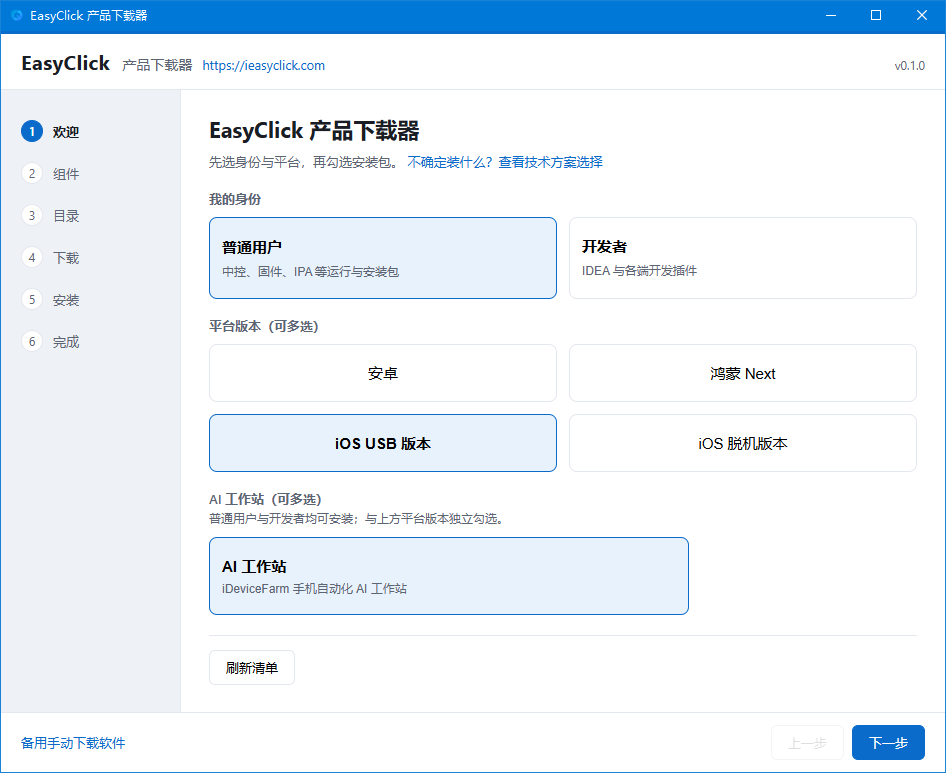
Fig. 1 · Select iOS USB and AI Workstation - Step 2
Check the install components
On the components page, check these three:
- iOS USB control center & mirroring
- iOS developer image package
- iDeviceFarm Mobile Automation AI Workstation
Then click Next.
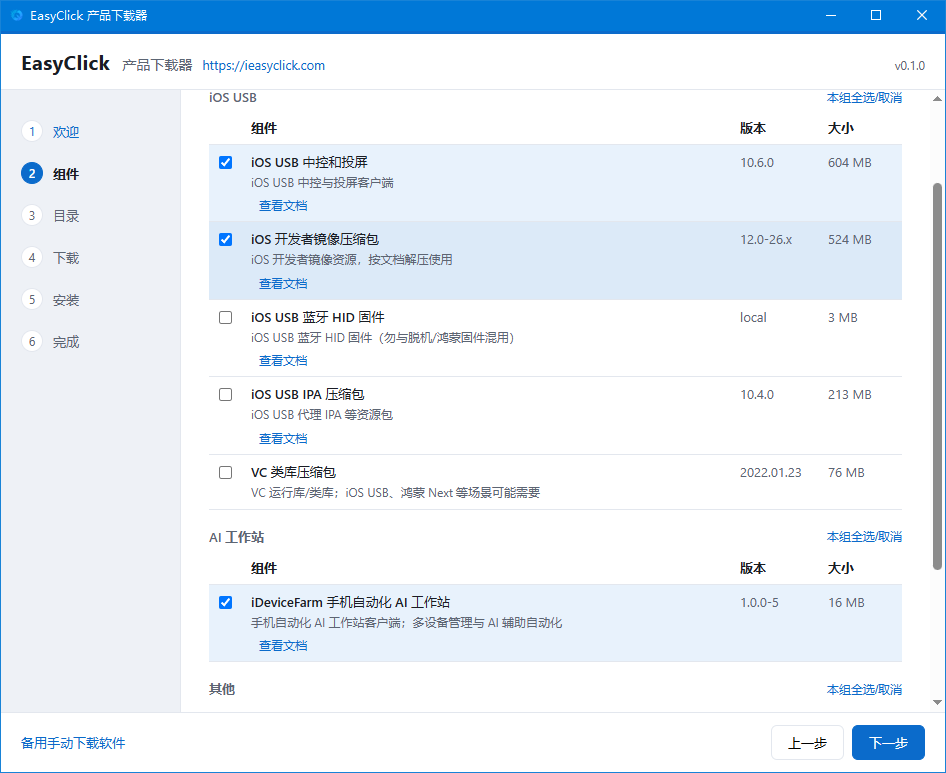
Fig. 2 · Check control center, developer images, iDeviceFarm - Step 3
Confirm the install folder
Choose the download/install directory. The default path is fine—confirm and continue.
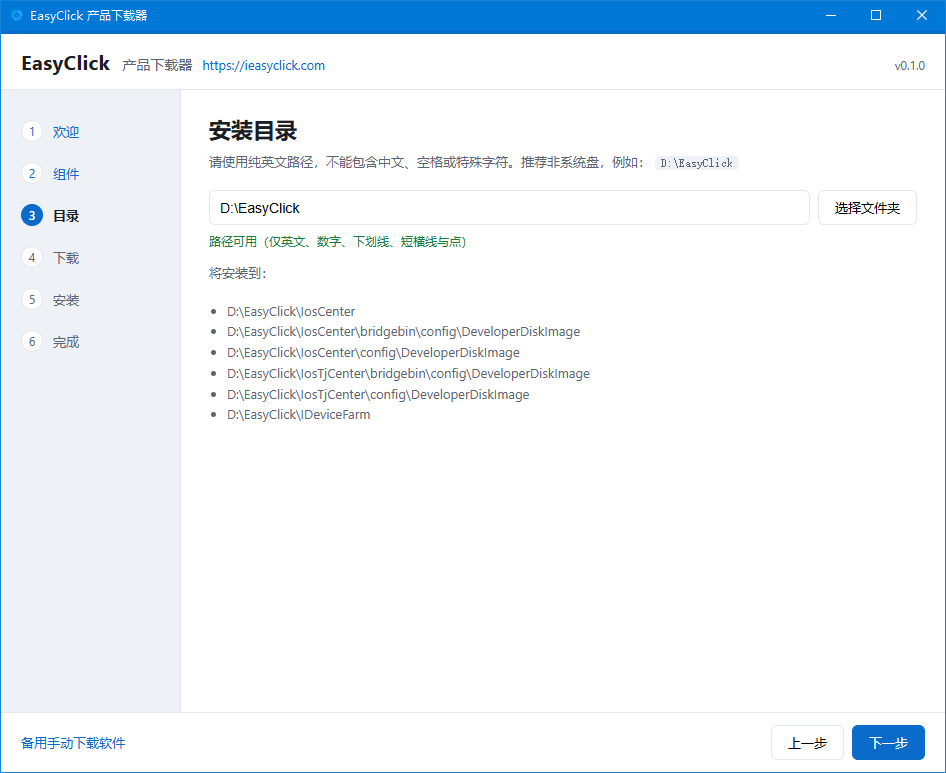
Fig. 3 · Confirm install folder - Step 4
Wait for software download
The downloader batch-downloads the selected packages. Keep the network stable until progress finishes.
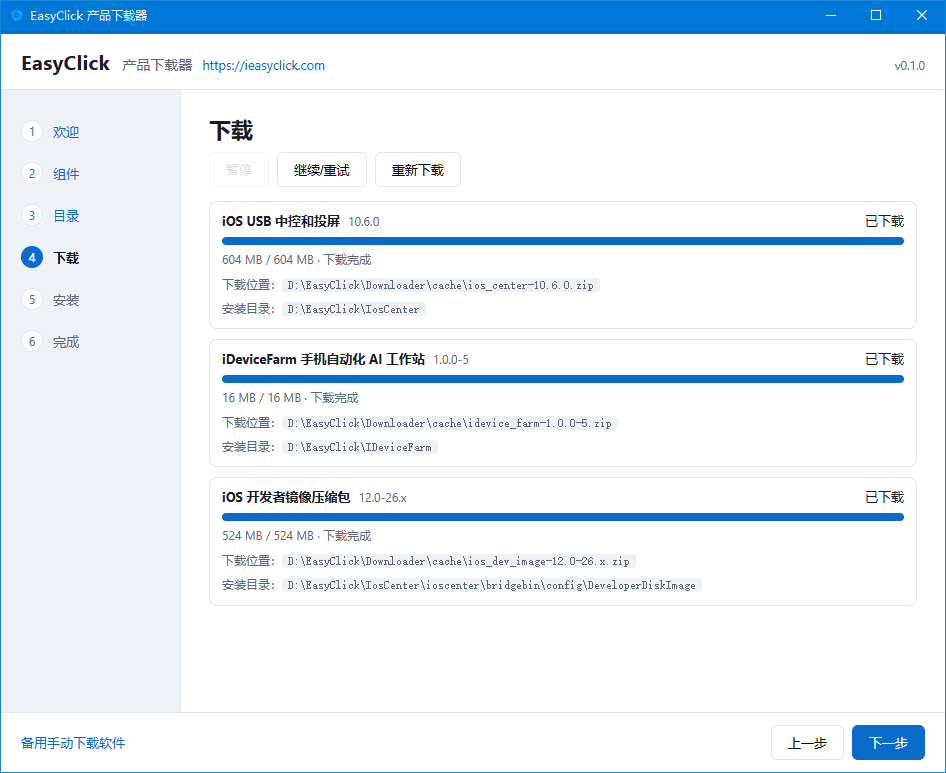
Fig. 4 · Batch download in progress - Step 5
Finish install from the prompts
After download, follow the on-screen install guide. For each package you can click Open folder to see where files were installed.
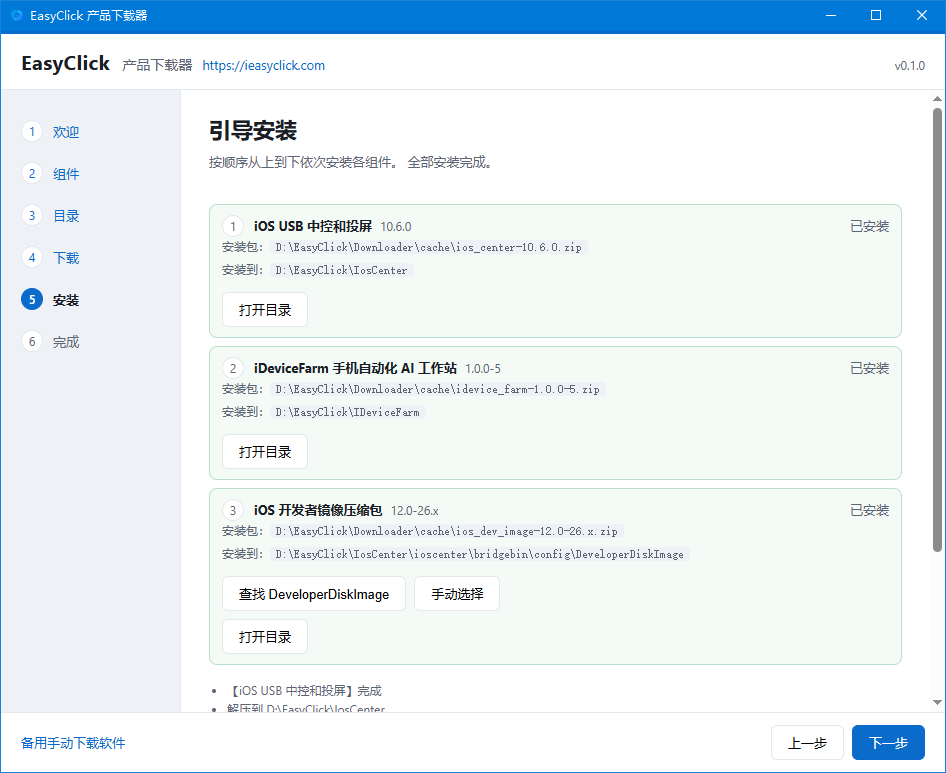
Fig. 5 · Install complete — open folders as needed - Step 6
Run EasyClick iOS USB control center
Open the iOS mirroring install folder and double-click 新中控.exe.
- No account yet: register first
- Existing EasyClick account: sign in directly
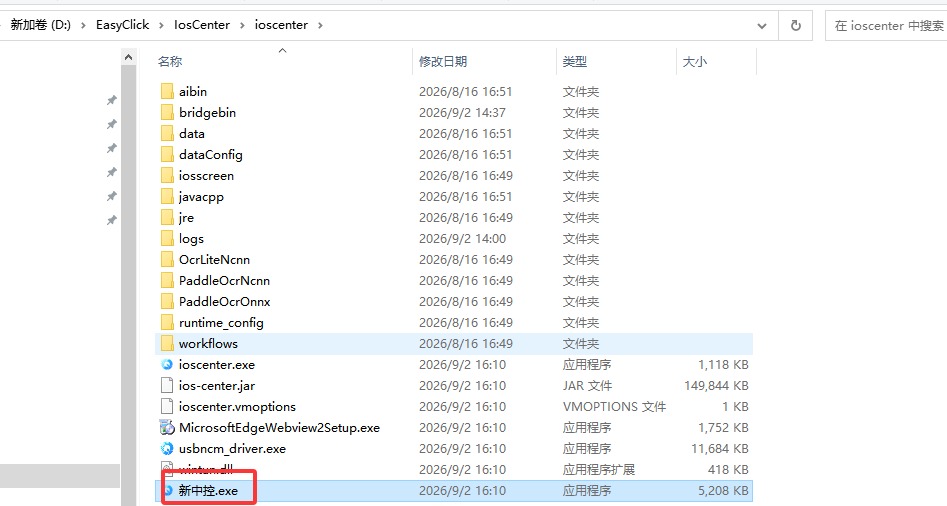
Fig. 6 · Double-click 新中控.exe - Step 7
Run iDeviceFarm
Open the iDeviceFarm install folder and double-click iDeviceFarm-AI-Agent.exe.
If it will not open: run MicrosoftEdgeWebview2Setup.exe next to it first, then try again.
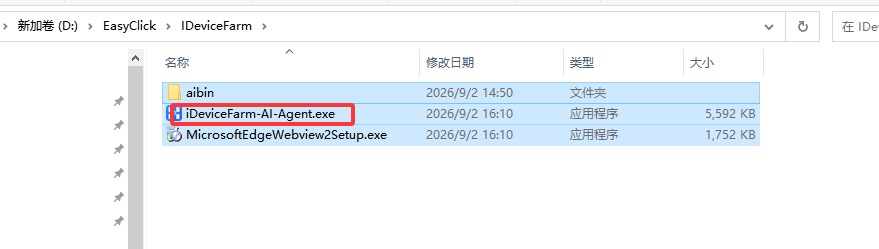
Fig. 7 · Double-click iDeviceFarm-AI-Agent.exe - Step 8
Confirm the workstation is running
When launch succeeds, you will see the iDeviceFarm workstation home. Next, install the phone IPA.
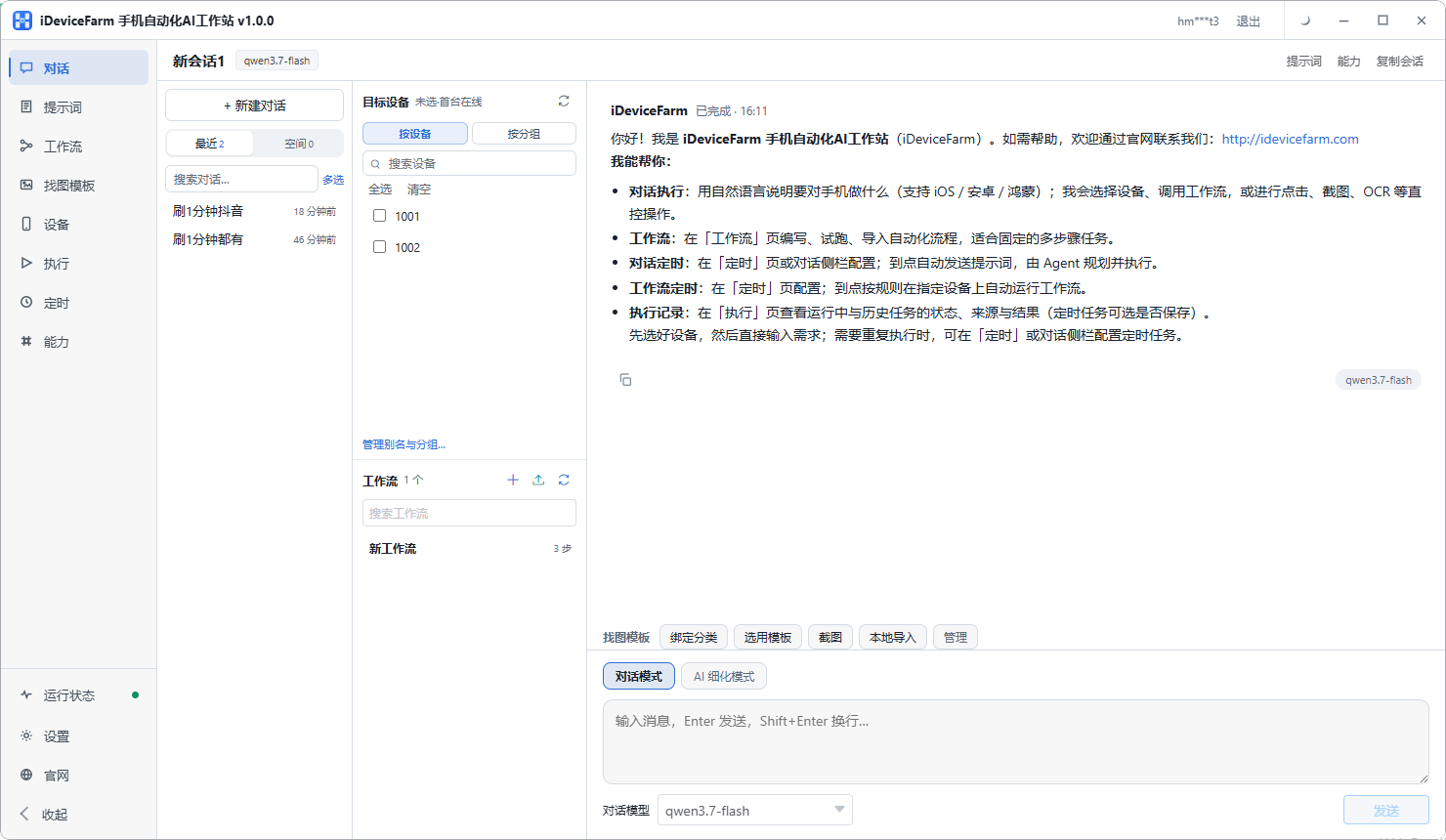
Fig. 8 · iDeviceFarm home screen - Step 9
Install the phone IPA (required for automation)
After the desktop apps are installed, install the automation IPA on the iPhone to enable automation.
- Download the free enterprise-signed IPA (good for getting started / testing)
- Can be used as a standalone main app, or for USB automation
- After download, install to the phone with iTools / AiSi
- ✓
Install complete — what next
Desktop apps + phone IPA are ready. Please confirm:
- EasyClick iOS USB control center is running
- iDeviceFarm AI Workstation is running
- IPA is installed on the phone
- Plug in the phone with a cable so the control center can detect it